OS/OW route guidance, spoken turn by turn along your permit.
Route guidance for an oversize or overweight load has one job, keeping you on the roads your permit lists. This page walks through a drive with Route Pilot Pro, screen by screen, so you know what you will see and hear before your first permitted move with it.


OS/OW is short for oversize/overweight. An OS/OW route guidance app reads the route on a state-issued permit and guides you along it, turn by turn, in place of a route it plans itself. Route Pilot Pro does that from the QR code on your permit. Here is what a drive looks like, from the moment you tap Start Drive.
Before the first turn
Open the permit from your permits screen. The permit screen shows route miles, turns and estimated hours, then the permit number, issuing authority, valid dates, load dimensions and escorts. The route map marks each stretch “On the permit” or “Check against the permit”, and a bar shows how many miles fall in each group and where. Look at the “to check” stretches now, while you are parked, and match them to the written directions on your permit.
Tap Start Drive. The first time, the app asks for location access. Then it loads your route. A few seconds after the drive begins, the most serious restriction on your permit appears at the top of the screen for several seconds. If your permit carries a danger-level card, such as a curfew or a no-night-movement rule, that is the one you see. The full list stays on the permit screen as restriction placards.
The drive screen
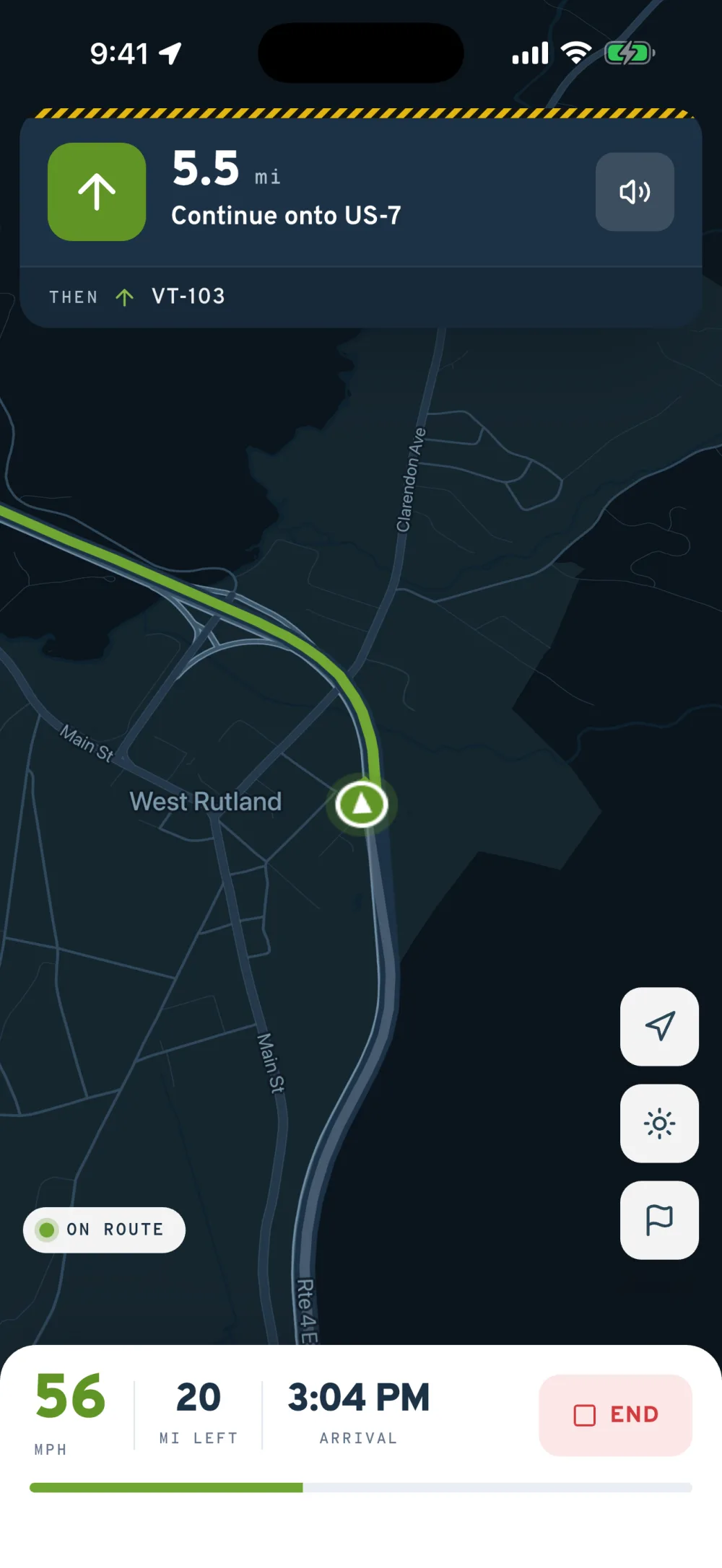
The banner at the top shows three things: the distance to your next turn, the instruction, and the road after it. A green “On route” pill shows while you follow the approved line. The bottom bar shows your speed, miles left and arrival time, with a progress bar and an End button.
Two buttons help mid-drive. The recenter button brings the map back to your position after you pan or zoom. The flag button lets you report a route problem without leaving the drive. Tap the moon or sun button to switch between the day and night maps. The night map is dark with a green route line.
Spoken turns
Voice guidance is on by default. As you approach a turn, the app speaks it with the distance, for example “In 0.3 mi, Turn left onto OK-3”. It uses the best English (US) voice installed on your phone. On iPhone you can add premium voices under Settings, Accessibility, Spoken Content, and the app picks the highest quality one it finds.
The speaker button on the turn banner mutes and unmutes speech during the drive. Spoken distances follow the units in your settings, miles and feet or kilometers and meters. Prompts are in English.
When you leave the route
The app compares your GPS position with the route line stored for your permit for the whole drive. When you are more than 250 meters, about 820 feet, from the line:
- The turn banner turns red and reads “Off permitted route”, followed by “Return to” and the road name.
- A red tint covers the map and the status pill reads “Off route”.
- The app says “You appear to be off route”.
The spoken alert repeats at most once every 2 minutes while you stay off route. The red banner stays up the whole time, even with voice muted. When you rejoin the route, the banner and pill return to normal and turn guidance picks up again. An alert tells you your position left the line the app holds for your permit. Your permit and the state’s rules decide what is legal. More on the off-route alerts page.
When the signal drops
Permit routes often run through rural country with patchy service. If you lose your connection, the drive screen shows an offline banner. Your position still comes from GPS, and the banner says map tiles resume when you reconnect.
Arriving and closing out
At the end of the route the app says “You have arrived at your destination”. The arrival screen shows miles driven, drive time and how many times you left the route. Tap Close Out Permit to mark the permit completed and move it to History in your permit file.
Where guidance needs a line to follow
Turn-by-turn guidance and the off-route check both need a drawn route. If the app cannot confirm a route for your permit, it shows no line and tells you to follow the printed permit, and it does not swap in a general route. Blanket permits have no fixed route, so there is nothing to guide along. Stretches on city or county roads are tagged local, because the state does not set a route for them. The verification page explains how a route earns its verified mark, and the states page shows which source the app checks against in each state, such as Minnesota or Texas.
You still carry the paper permit. The guidance helps you follow it, and the permit is the legal document.
Real screens from Route Pilot Pro.
-
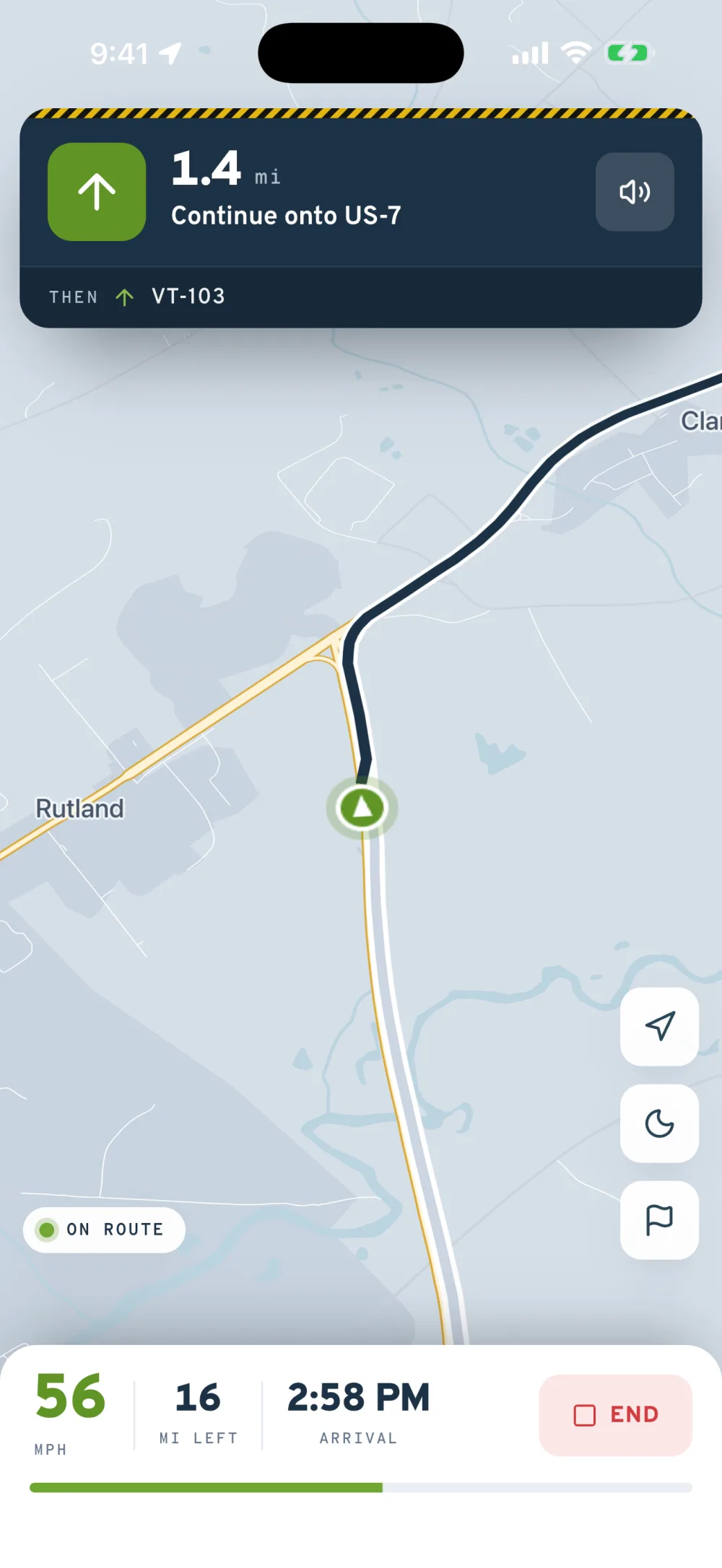
DriveNext turn, speed, miles left and arrival time
-
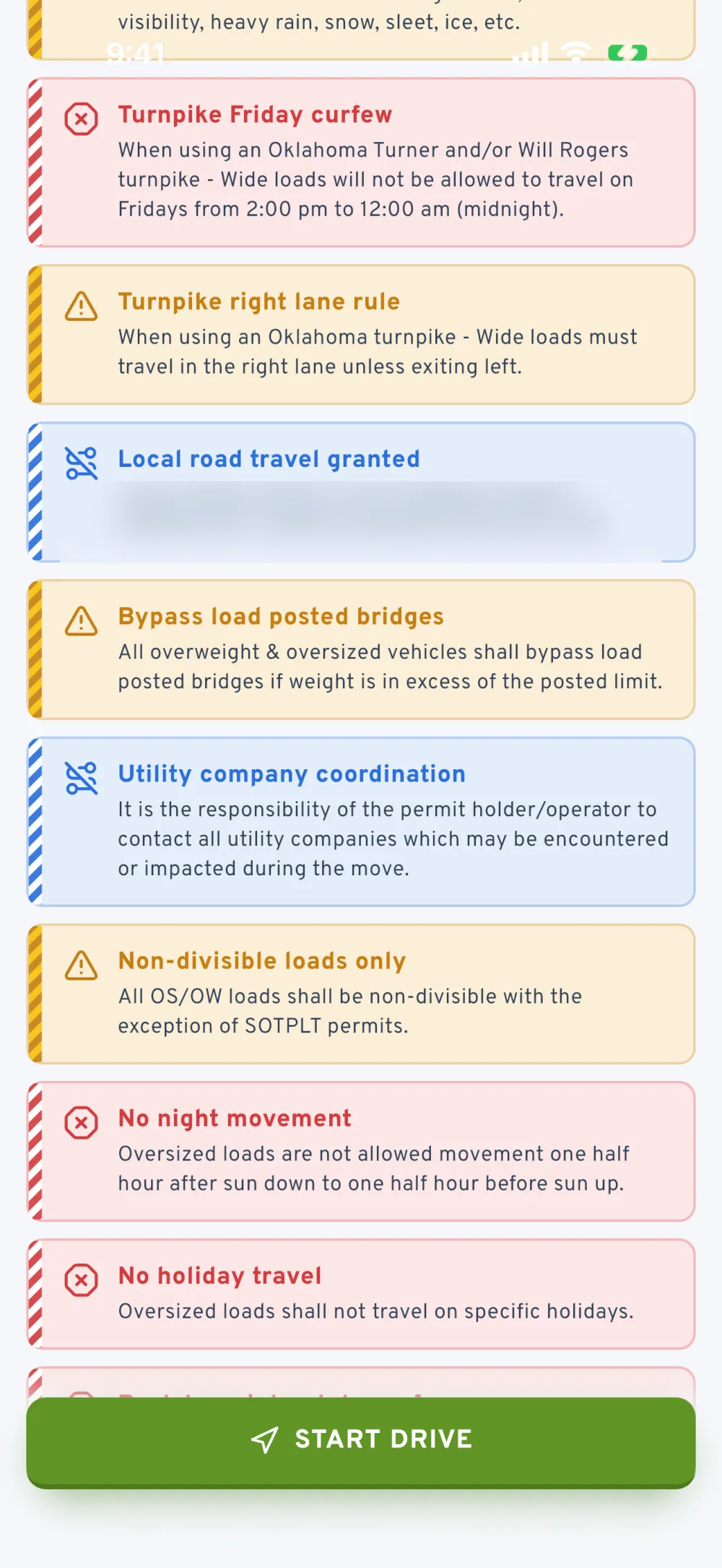
RestrictionsRestrictions listed from the permit
-
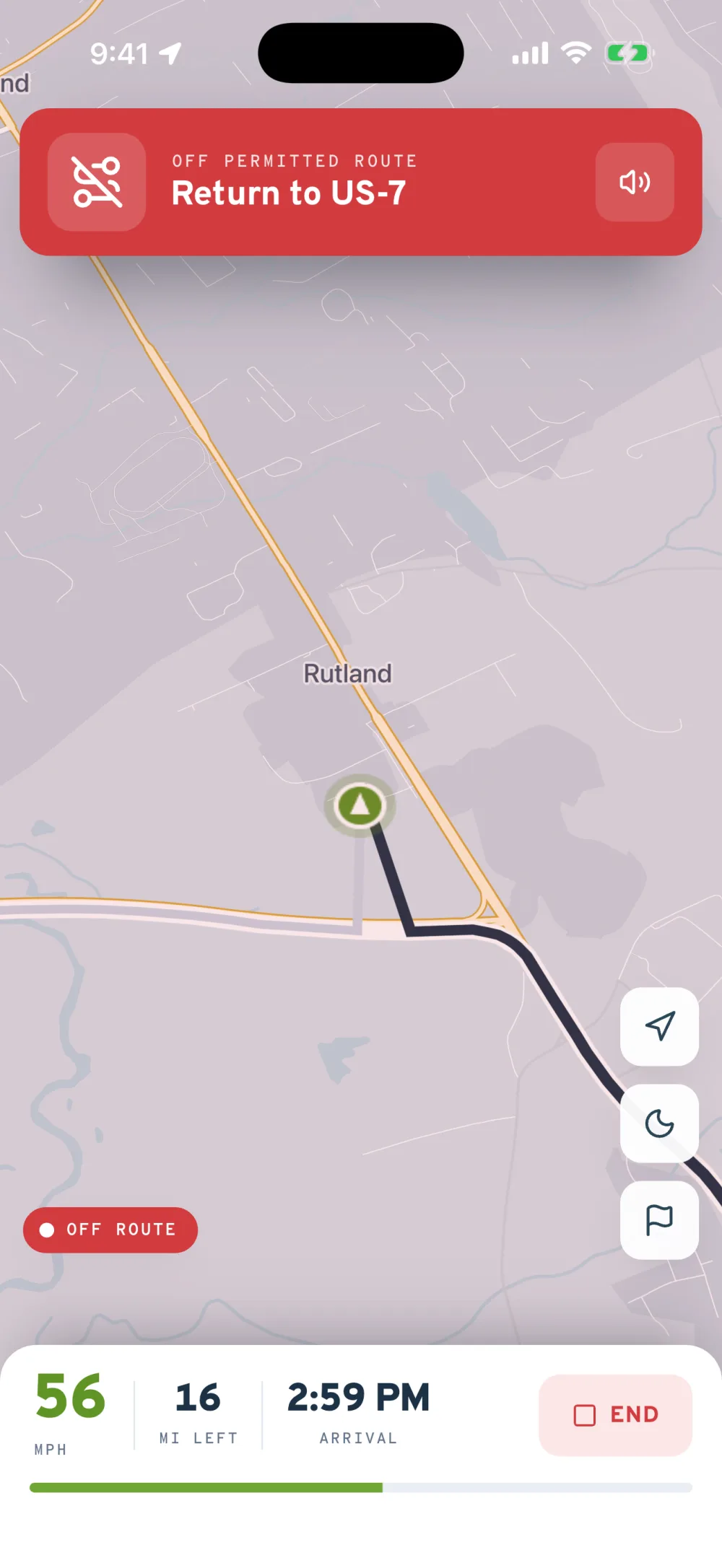
Off routeA red banner when you leave the route
41 states and 2 provinces covered on official route data.
A state or province counts as covered when live permits there have a route verified on an official source. Each one counts once, under the source most of its permits use. Look up your state before a move.
See every state and province-
State and province road data
29 states and 2 provinces
We build the route on the road data the state or province itself publishes, and match the roads and junctions your permit names on it.
-
State permit portal route
9 states
Some state permit portals publish a route line for each permit. We load that line and run the same checks on it. The app needs the portal link on your permit, or a permit number it can look up.
-
Permit system route data
3 states
Some states issue permits through a system that supplies its own route data. We check your route against that data. This data belongs to the permit system and is separate from the state's own road data.
Common questions.
Which states does the guidance work in?
The app guides you along any route it can draw and confirm from your permit. Route checking against official route data runs in the states marked on the coverage map, and the states page shows the source for each one.
Can I mute the voice?
Yes. Tap the speaker button on the turn banner to mute or unmute during a drive. The Voice guidance switch in your profile sets the default. Muting stops speech, and the red off-route screen still shows.
What units does the guidance use?
The units in your settings. Choose miles and feet or kilometers and meters, and spoken distances follow your choice.
What happens at the end of the route?
The app says "You have arrived at your destination". The arrival screen shows miles driven, drive time and how many times you left the route, and Close Out Permit moves the permit to History.
Keep reading
Scan your next permit and drive the route it approves.
Download Route Pilot Pro on iPhone or Android, scan the QR code on your permit and start the drive.