Restriction placards
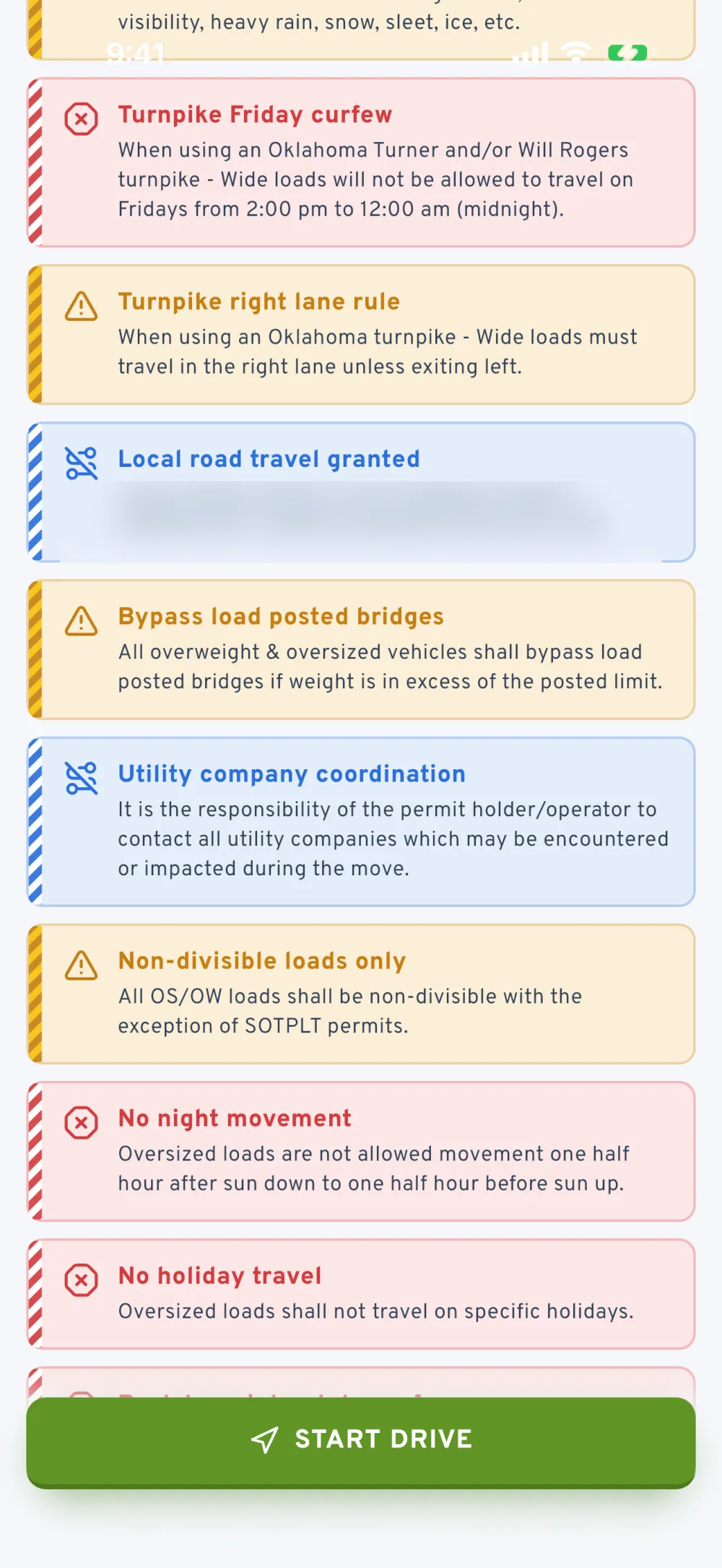
Your permit lists escort requirements and restrictions in dense print. Route Pilot Pro pulls them out and shows each one as a card you can read at a glance before you roll.
Escorts and restrictions from your permit, shown as sign-style cards before you roll and again when a drive starts.
How it works in 4 steps.
- 01
Scan your permit
The app reads the escort rules and restrictions printed on the permit when it builds your route.
- 02
Check the permit screen
Open the permit. An Escorts section shows how many escorts the permit requires, front and rear, and any conditions. A Restrictions section shows how many are active.
- 03
Read each card
Each restriction is a card with a title and the permit text. Cards use three levels: danger, warning and info.
- 04
Start the drive
A few seconds after the drive begins, the app shows the most serious restriction at the top of the screen for several seconds.
What you see in the app.
- An Escorts section with the number of escorts required and an "F + R" tag for front and rear.
- A Restrictions section with a count, such as "2 ACTIVE", and one card per restriction.
- A danger-level card at the top of the drive screen when the permit has one.
Questions about restriction placards.
Where do the restrictions come from?
From your permit. The app reads them when it builds the route and shows the title and text it found.
Does the app show restrictions during the drive?
Yes. A few seconds after the drive starts, it shows the most serious restriction at the top of the screen for several seconds.
Do I still need to read my permit?
Yes. The cards summarize what the app read. The printed permit is the legal document.
More from the product
Scan your next permit and drive the route it approves.
Download Route Pilot Pro on iPhone or Android, scan the QR code on your permit and start the drive.